Optimizing Keywords
The SEO tab in Docs to WP Pro helps you check and improve your content’s search engine optimization before publishing. It works alongside your publishing workflow to ensure posts are optimized for keywords, readability, and engagement.
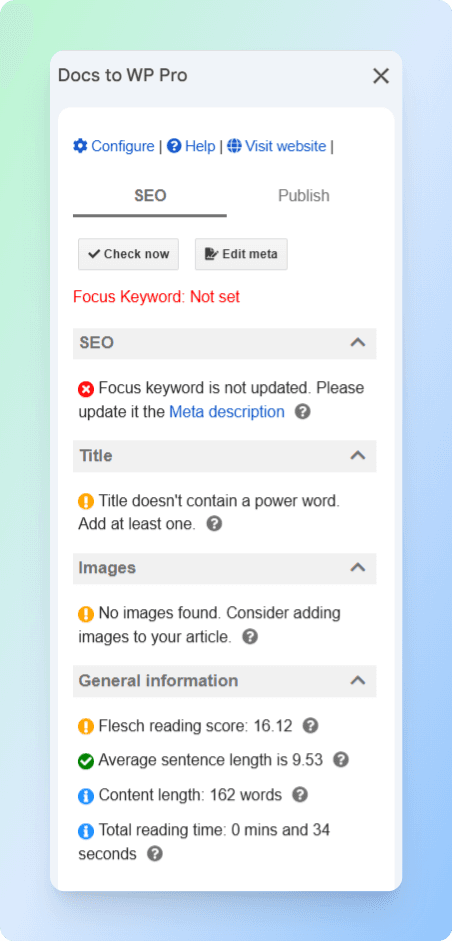
1. Check Now
Click Check now to run an SEO analysis of your content. The results are grouped into four sections:
-
Title
-
Checks if the focus keyword appears in the title.
-
Detects the use of power words for better click-through rates.
-
-
Content
-
Verifies if the focus keyword is included in the main body.
-
Checks whether the keyword appears in the meta description.
-
-
Images
-
Warns if no images are included in the post.
-
Reminds you to use relevant visuals to improve SEO and user engagement.
-
-
General information
-
Sentence length (average).
-
Content length (word count).
-
Estimated reading time.
-
Flesch reading score for readability.
-
Icon meanings:
-
Green – Good result.
-
Yellow – Needs improvement.
-
Red – Critical issue, fix required.
-
Blue – Informational only (neutral).
2. Edit Meta
Click Edit meta to customize your post’s metadata. This opens a pop-up with three fields:
-
Slug – The custom URL ending for your post (e.g.,
/seo-tips). -
Focus Keyword – The main keyword or phrase you want to target.
-
Meta Description – A short summary of your post for search engines (150–160 characters recommended).
3. Best Practices
To get the best SEO results with Docs to WP Pro:
-
Include your focus keyword in the title, content, and meta description.
-
Add at least one relevant image with alt text.
-
Keep sentences short and easy to read.
-
Use power words in titles to increase clicks.
-
Maintain a Flesch reading score of 60–80 for broad readability.
-
Ensure your content length matches the topic’s depth (short posts may rank poorly).