License Management
Add License Key
To activate Docs to WP Pro with your license key:
-
Enter your license key in the text field provided at the top of the License Manager window.
-
Click + Add license to apply the key and activate your plan.
-
Clear: Use this button to reset the license key text field if you need to re-enter or correct the key.
Sample image:
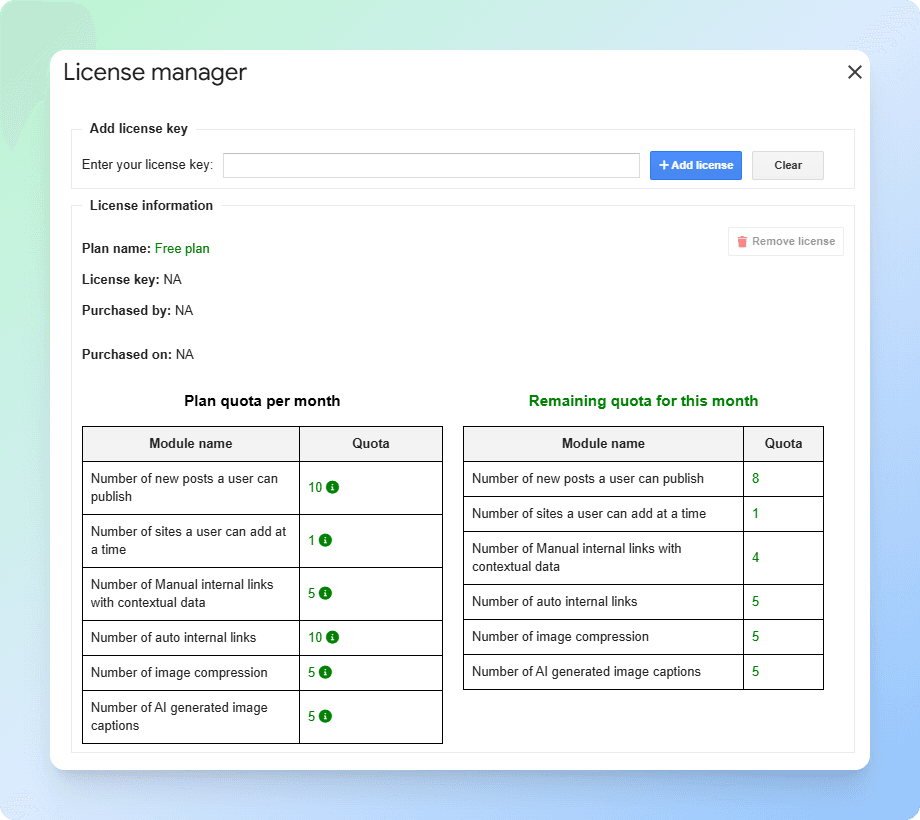
License Information
Once your license is activated, the following details will be displayed in your account:
-
Plan name – The subscription plans currently in use. By default, new accounts start with the Free Plan. Other available plans include Starter, Pro, and Enterprise, each offering higher quotas and additional features.
-
License key – The license key you applied to activate the product.
-
Purchased by – The account or email address used for purchase.
-
Purchased on – The date the license was purchased.
-
Plan quota – Each plan includes a monthly quota that defines how many actions you can perform (e.g., publishing posts, adding sites, creating internal links, compressing images, generating captions). Quotas reset at the start of every billing cycle.
-
Remaining quota – Displays how much of your plan quota is still available for the current month.
Remove License
If a license is already active, a Remove license button will appear on the right side. Clicking this button will deactivate the current license, reverting Docs to WP Pro to the Free plan.