Default Settings
The Default Settings section lets you control how content is published to your connected WordPress site.
Sample Image:
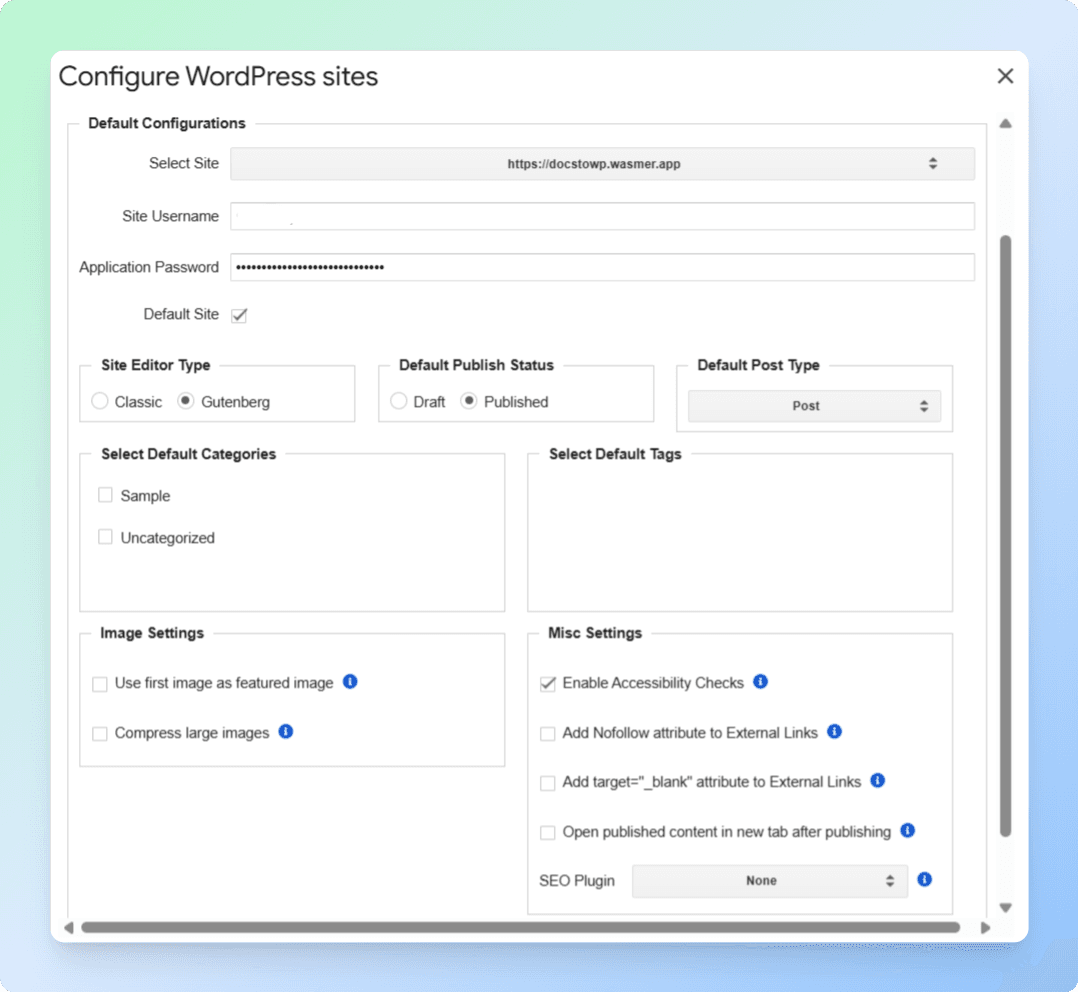
Site Editor Type
Choose the editor for publishing:
- Classic – Uses the traditional WordPress editor with a simple text-based layout.
- Gutenberg – Uses the modern block-based editor for flexible layouts and design.
Default Publish Status
Select the status for new posts:
- Draft – Saves the post as a draft.
- Published – Publishes the post immediately.
Default Post Type
Choose what kind of WordPress content you want to create by default:
- Post – Standard blog entry or article that appears in your site’s blog feed.
- Page – Static content such as “About Us,” “Contact,” or “Services” pages.
- Wp_global_styles – A system post type used by WordPress to store global style settings (not for normal publishing).
- Wp_font_family – Stores custom font family data for the site (not meant for public content).
- Wp_font_face – Stores individual font face definitions (also not for public publishing).
Select Default Categories
Choose categories that will be automatically applied to new posts:
- Sample – Example category for testing.
- Uncategorized – Default WordPress category if no other category is selected.
Select Default Tags
Enter keywords or phrases that will be added to every new post by default.
Image Settings
- Use first image as featured image – Sets the first image in your document as the post’s featured image.
- Compress large images – Reduces image file sizes to improve page load speed.
Misc Settings
- Enable Accessibility Checks – Scans your content for accessibility best practices before publishing.
- Add Nofollow attribute to External Links – Prevents search engines from following external links.
- Add
target="_blank"attribute to External Links – Opens external links in a new browser tab. - Open published content in new tab after publishing – Automatically opens your published post in a new tab.
- SEO Plugin – Choose an SEO plugin to integrate with publishing:
- None – No SEO plugin integration.
- Rank Math – Integrates with the Rank Math SEO plugin.
- Yoast – Integrates with the Yoast SEO plugin.
Saving Your Default Settings
Once you’ve adjusted all settings to your preference, click Save Configuration.
- Your changes will apply to all future posts published to this site.
- You can return to this tab at any time to update the settings.
Last updated on