Adding a New WordPress Site
You can connect and manage multiple WordPress sites directly from the Docs to WP Pro sidebar in Google Docs.
1. Prerequisites
Before you begin, make sure you have:
- A Google account
- An active WordPress site
2. Installing Docs to WP Pro
You can install the extension in two ways:
From Google Docs:
-
Open any Google Doc.
-
On the top menu, go to:
Extensions → Add-ons → Get add-ons → Search for “Docs to WP Pro” → Install.
From Google Workspace Marketplace:
Click here to Install Docs to WP Pro → ,You will be redirected to the Docs to WP Pro extension page.
Once installed, you’ll see Docs to WP Pro listed under the Extensions menu in Google Docs.
3. Connecting Your Site in Docs to WP Pro
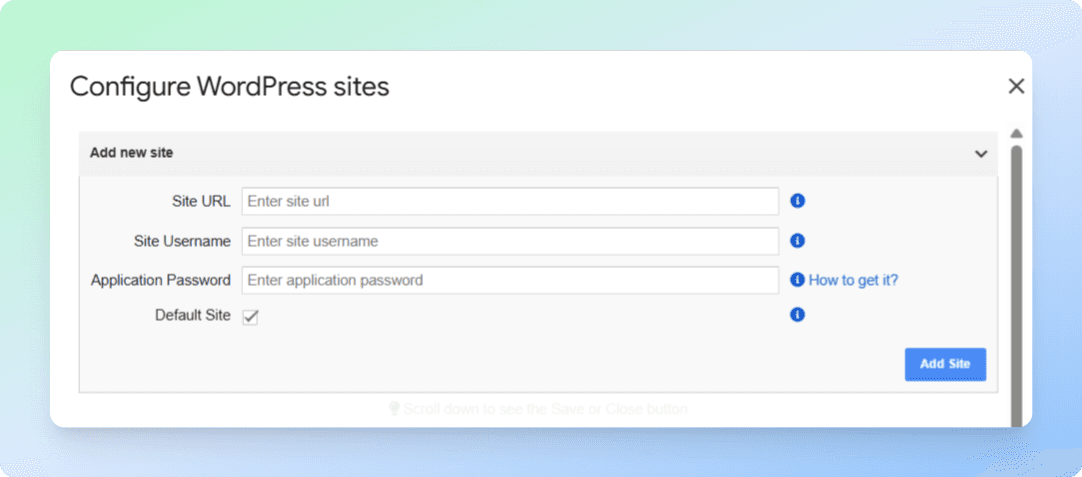
- In Google Docs, click Extensions → Docs to WP Pro → Push to WP.
- In the sidebar, click Configure → Add New Site.
- Fill in the following details:
- Site URL – Full address, including
https://.
Example:https://yourdomain.comorhttps://yourdomain.com/blog - Username – The same one you use for your WordPress admin dashboard.
- Application Password – If you don’t have one yet, follow the steps below.
- Site URL – Full address, including
What is an Application Password?
An Application Password is a site-specific credential that allows approved apps to authenticate to your WordPress account without using your main login. Each password can be individually revoked, and typical implementations generate a fixed-length key (commonly 24 characters) associated with your user on that site.
-
It’s safer because:
→ You don’t share your main password.
→ You can remove or reset it anytime.
Learn more about Application Passwords
How to Generate an Application Password
-
Log in to your WordPress dashboard.
-
Go to Users → Profile.
-
Scroll to Application Passwords.
-
Enter a descriptive name (e.g., “Docs to WP Pro”).
-
Click Add New Application Password and copy the generated password.
-
Paste this password into Docs to WP Pro when prompted to establish a secure connection.
Note: Some security plugins can disable Application Passwords. If you don’t see the option, check your security plugin settings (e.g., Wordfence) and re-enable Application Passwords there. WordPress.org
How to Generate a WordPress Application Password
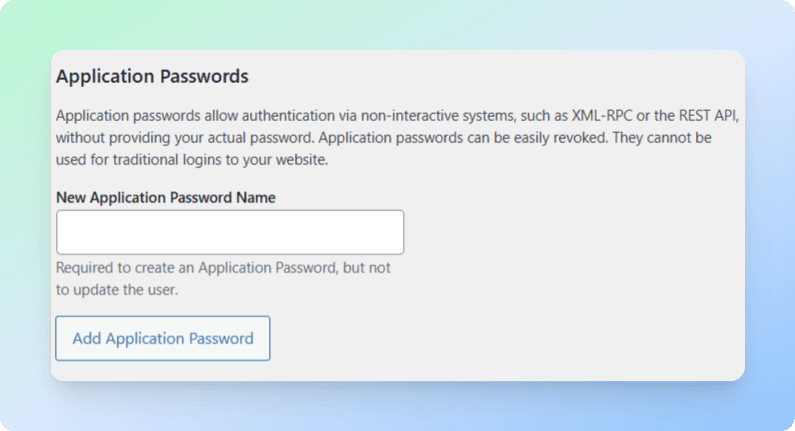
- Log in to your WordPress Dashboard.
- Go to Users → Profile.
- Scroll to Application Passwords.
- Enter a name (e.g.,
"Docs to WP Pro") and click Add New Application Password. - Copy the generated password you will not see it again.
- Paste this password into the Application Password field in Docs to WP Pro.
4. Final Steps
- (Optional) Check the box Default Site if you want the entered site to be your default publishing site.
- Click Add Site.
If successful, your site will appear in the Publish tab → Sites list.
5. Publishing to Multiple Sites
Repeat these steps for each site you want to add. You can switch between connected sites anytime from the Publish tab.
Next Step: Once your site is connected, configure your publishing preferences in Default Configuration..