Adding Internal Links
Internal links improve navigation, distribute SEO value, and help readers discover related content on your site. With Docs to WP Pro, you can insert them directly in Google Docs or use the built-in SEO tools.
Adding Internal Links Manually in Google Docs
-
Highlight the text you want to turn into a link.
-
Right-click and choose Insert link (or press
Ctrl + K/Cmd + K). -
Enter the full URL of your internal page/post.
- Example:
https://yourdomain.com/about
- Example:
-
Click Apply.
These links are preserved when you push the document to WordPress.
Using Docs to WP Pro Internal Link Features
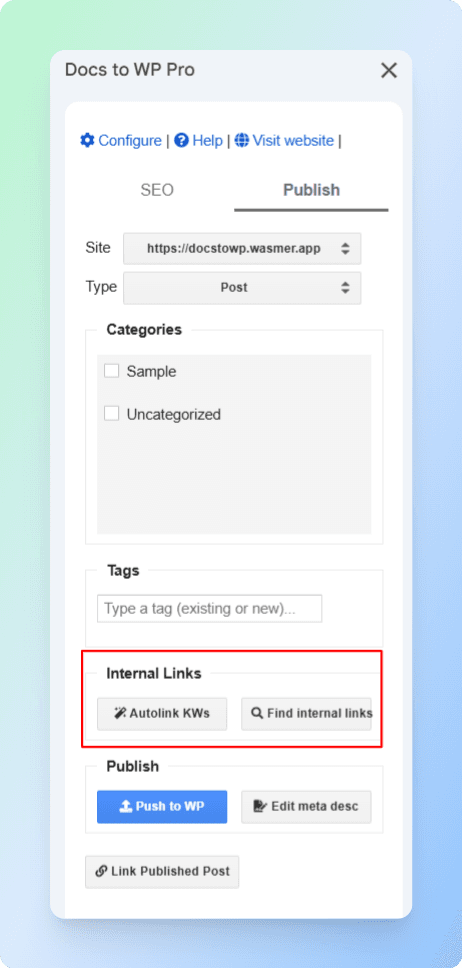
Docs to WP Pro also provides tools to manage internal links during publishing:
-
Autolink KWs – Automatically insert internal links based on keyword mapping.
-
Find internal links – Search your WordPress site for relevant posts/pages to link, and insert them directly.
Best Practices
-
Link to related and valuable content only.
-
Use descriptive anchor text (e.g., “learn more about internal linking” instead of “click here”).
-
Avoid adding too many links in one paragraph.
-
Update or recheck links when restructuring site content.